This is a brief introduction about the way I adopt Dev Container in my development workflow. If you’re interested in free yourself from managing different development environments across different programming languages/framworks while using modern IDEs. Dev Container could be a good choice for you.
If you’re a software developer work across multiple projects, sometimes you might need to switch between different versions of programming languages/framwork. Though modern programming languages support multiple version managers like NVM for NodeJS and Virtual Environment for Python, users still need to carefully setup/select environments to avoid changing global runtime. asdf is a great all-in-one solution but requires extra setup for projects.
Previously, my approach to address the complexity was container. Usually, I used project structure like:
 /path/to/project
 |-- deployment                   # Switch different directories to use different environments
 |   |-- production
 |   |   `-- docker-compose.yaml
 |   `-- development
 |       `-- docker-compose.yaml
 |-- dockerfile                   # Actual Dockerfiles for different environments
 |   |-- production
 |   |   `-- Dockerfile
 |   `-- development
 |       `-- Dockerfile
 `-- src
For local development, source code will be mounted to containers via docker-compose.yaml and Dockerfile, which with all necessary languages/packages installed. Thus, I can edit code in IDEs and get latest results immediately without installing dependencies on my machines. However, IDEs still need language runtimes. For instance, without them in JetBrains IDEs,
syntax-highlighting and debug features won’t work, which turns them into text editors with high resource consumption. Though there are some remote development solutions, they are done by SSH (like for VSCode or JetBrains) and might require extra setup.
Fortunately, IDEs like VSCode and JetBrains now are adding support of Dev Container. Different from remote development, Dev Container run IDE instances in containers. It makes IDEs can directly use environment in container, which frees user from having to setup language specific runtimes/managers on host machines.
With Dev Container, project structures become:
 /path/to/project
 |-- .devcontainer
 |   |-- devcontainer.json        # Define IDE and container related configs when running in Dev Container
 |   `-- Dockerfile               # Dev Container definition
 |-- deployment                   # Switch different directories to use different environments
 |   `-- production
 |       `-- docker-compose.yaml
 |-- dockerfile                   # Actual Dockerfiles for different environments
 |   `-- production
 |       `-- Dockerfile
 `-- src
Content of devcontainer.json is also straightforward. For example, the one I use to run Hugo locally for this blog is:
{
  "name": "hugoblog",
  "build": {
    "dockerfile": "Dockerfile"
  },

  "customizations" : {
    "jetbrains" : {
      "backend" : "GoLand",
      "settings" : {
        "com.intellij:app:HttpConfigurable.use_proxy_pac": true
      },
      "plugins": [
        "mobi.hsz.idea.gitignore"
      ]
    }
  },
  "features": {
    "ghcr.io/Dev Container/features/git" : {}
  }
}
This definition boots a Dev Container called hugoblog which is built from the Dockerfile under the .devcontainer directory. The customizations key are setting specific to IDE (VSCode has different options). For JetBrains IDEs, users can declare IDE to run in Dev Container and pre-installed plugins (isolated from plugins installed on host machine). In this example, they’re GoLand and gitignore, respectively. Also, some features can also be added to Dev Container without defining in Dockerfile.
There are no restrictions about Dockerfile for Dev Container. For instance, for hugoblog, I use:
FROM debian:13.2

ARG DEBIAN_FRONTEND=noninteractive
RUN apt-get update && \
    apt-get install -qq -y  \
        git \
        dpkg-dev \
        curl \
        locales \
        wget

# set locale for lb and package installation
RUN sed -i '/en_US.UTF-8/s/^# //g' /etc/locale.gen && \
    locale-gen
ENV LANG en_US.UTF-8
ENV LANGUAGE en_US:en
ENV LC_ALL en_US.UTF-8

RUN wget https://github.com/gohugoio/hugo/releases/download/v0.157.0/hugo_extended_withdeploy_0.157.0_linux-amd64.deb && \
    dpkg -i hugo_extended_withdeploy_0.157.0_linux-amd64.deb

ENTRYPOINT ["sleep", "infinity"]
The Dockerfile includes only necessary packages for this project and no IDE specific packages.
To run Dev Container, for JetBrains IDEs, if a project contains .devcontainer directory, they will users to run Dev Container with wizard on buttom right:
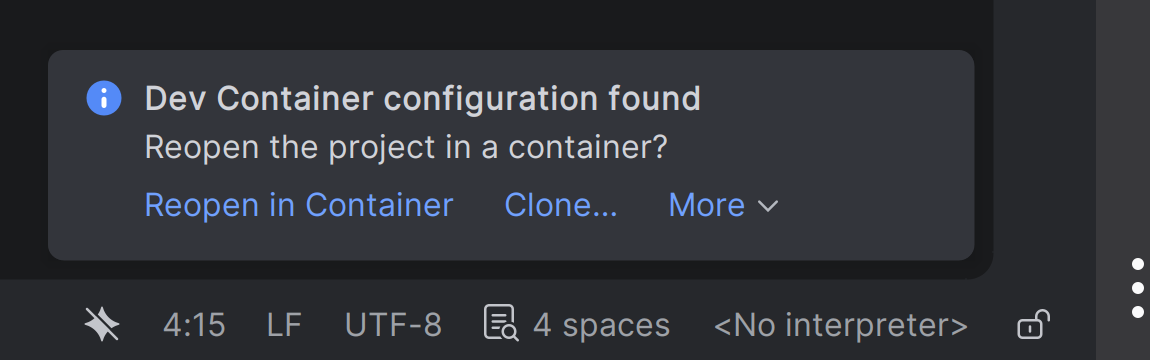
Users can also run them by right-click the .devcontainer/devctainer.json and select the Dev Containers:
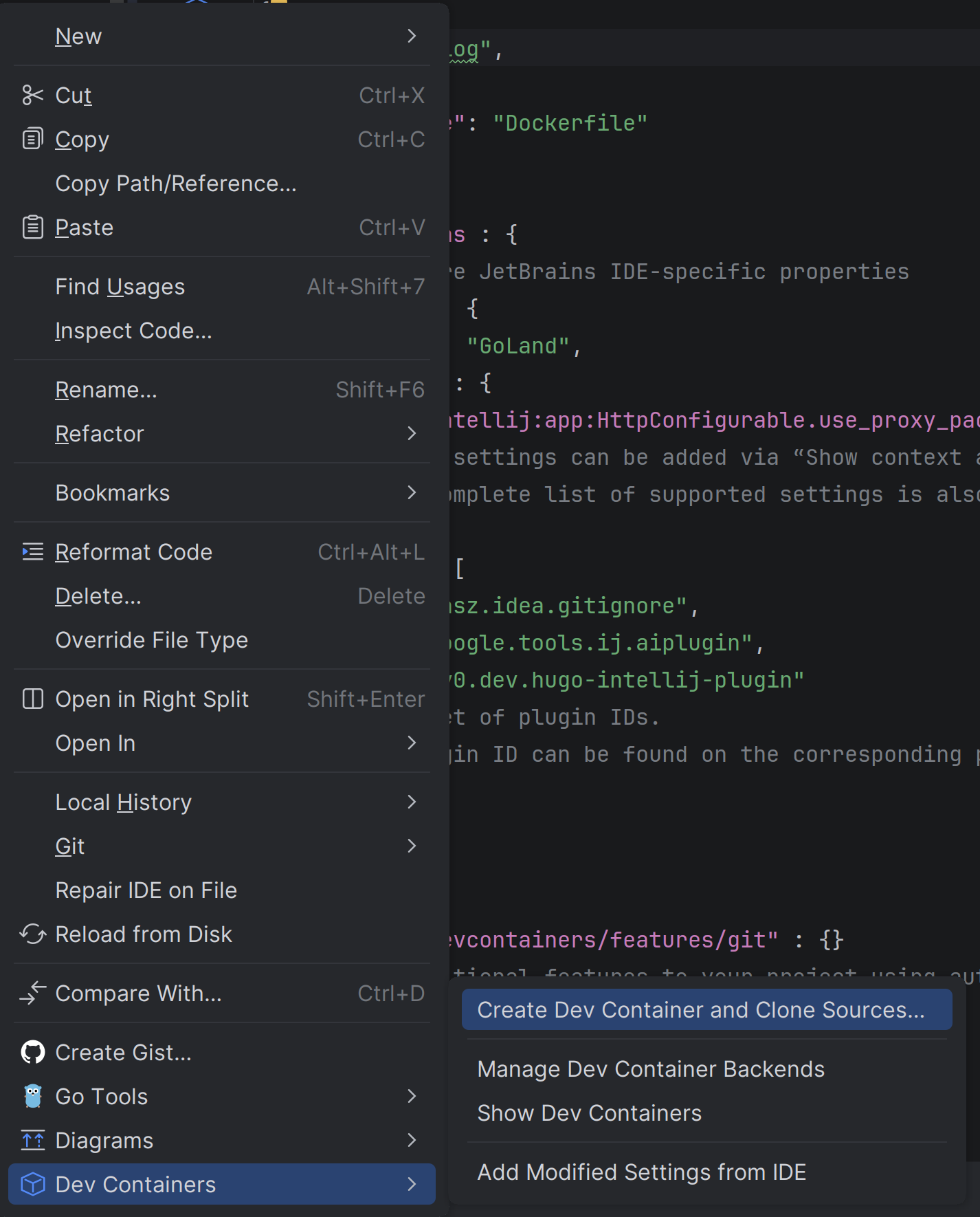
Then users will see IDEs start building containers based on Dockerfiles, adding features, installing and configuring new IDE instances.
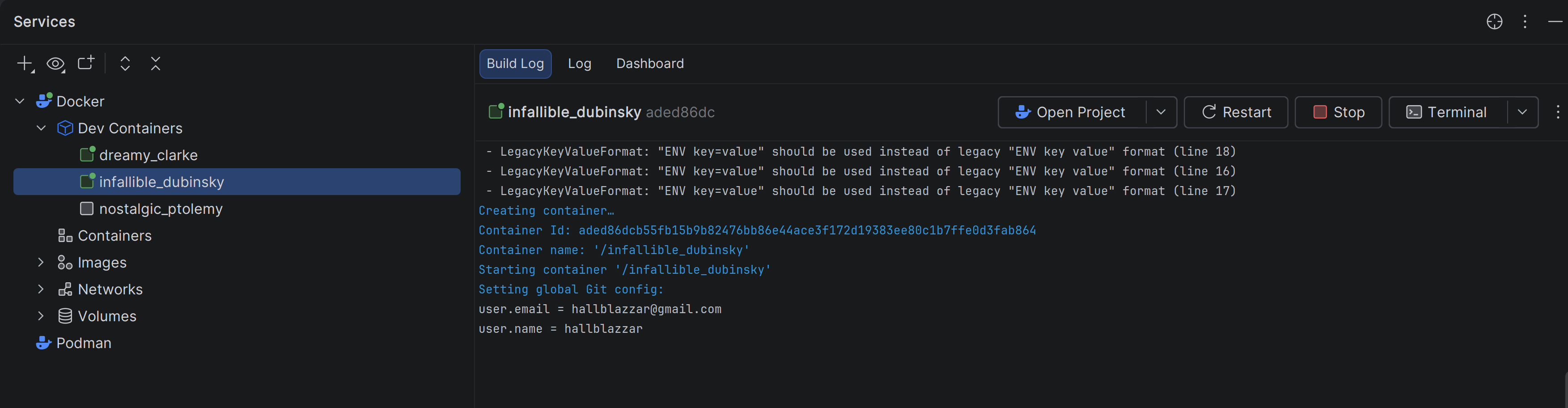
Once build finished, Dev Container will start and users will be asked to switch new IDE instance:
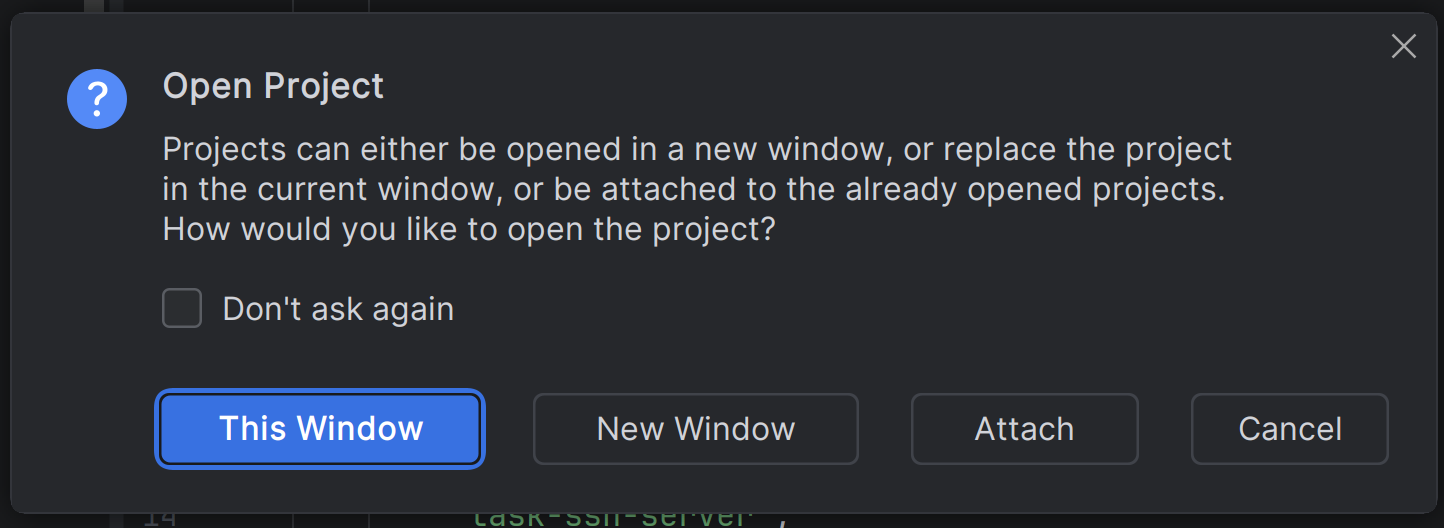
The mounted/copied project will under the /IdeaProjects directory. Container can also be seen by container runtime (e.g., docker ps). If shell is included in Dockerfile or base containers, users can also access Dev Container to execute commands. In my use case, I run hugo server --bind 0.0.0.0 to run hugo server instance with live-update, and check modified content on browser.
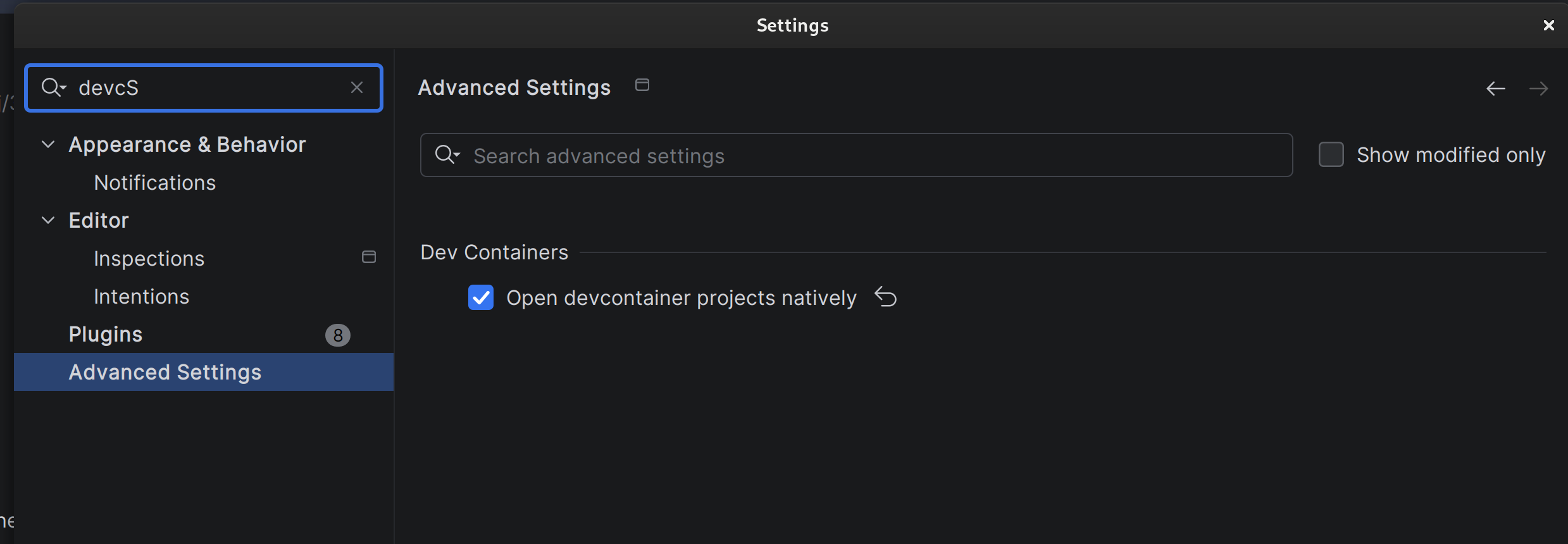
Another breakthrough about it is, currently, JetBrains IDEs supports integrating Dev Container with IDEs installed on host machine. Once users enable “Open Dev Container projects natively”, next time while opening projects, Dev Container will be automatically loaded on IDE instances on host machine. It means users don’t need to manually switch IDE instances and can use settings/plugins from host machine IDEs.
Drawbacks Link to heading
From my experience so far, Dev Container is still in early stage for JetBrains IDEs:
- Not all properties work well. For instance, the
forwardPortscan expose container port to host port, which should allow browser on host machine to access exposed service withlocalhostbased URLs. However, on JetBrains IDEs, users will see Dev Container ports exposed on UI but no ports are actually exposed, which can be confirmed fromdocker inspect. Users still need to use bridged container IP to access them (can be checked bydocker inspect). - Docker is the runtime works properly. Though JetBrains supports Podman as backend, containers will be ran with some features unconfigured. For instance, no internal bridged IP as Docker containers, which users don’t have alternative approaches to access services on container.
- File permission issues. Root privilege (in container) is used for files created via shell in Dev Container and copied from host file systems. Users need to manually change owner/permission of these files/directory to edit them in IDE.
Conclusion Link to heading
Despite the Dev Container is still in early stage and has some disadvantages, it can help users to simplify environment management works. In my use case, I don’t install any programming languages runtime/compilers on my OS. Instead, all my development works are done in Dev Container, Distrobox (for quick test on CLI) and Vagrant (for project requires fully isolated and functional kernel).
If you’re interested in Dev Container, I recommend start from IDEs’ official website (like JetBrains) and official reference.